Using the myDSV dashboard
 Finding your way around the myDSV dashboard
0.0 Finding your way around the myDSV dashboard
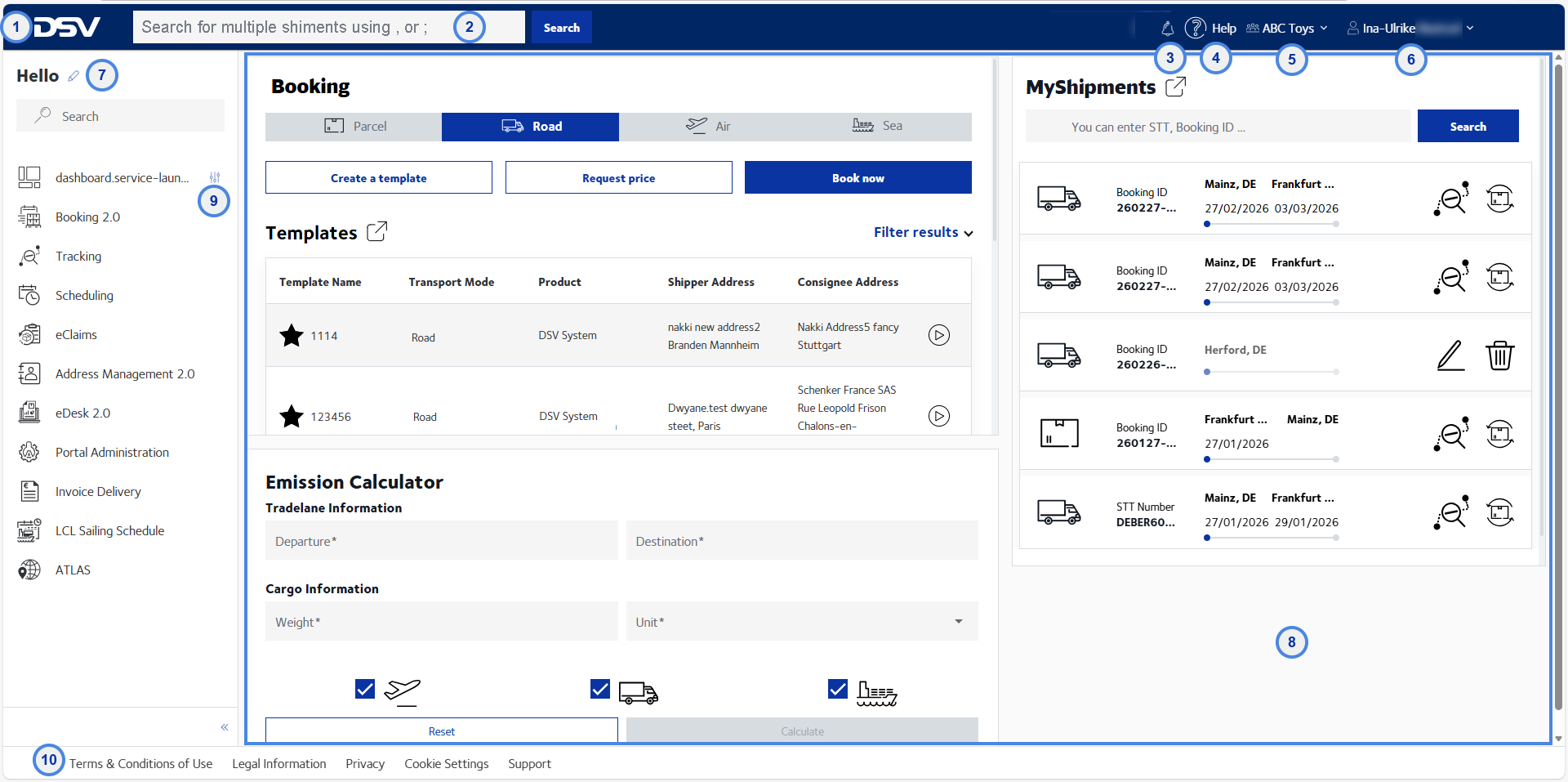
After you have logged in you will see the myDSV dashboard. The image below shows all functionality the dashboard has to offer.
-
Use the DSV logo
Click on the DSV logo to return to the myDSV dashboard at any time. -
Access Quick Tracking
Use this search bar to track your shipment without navigating to the Tracking service first. -
Check out Announcements and Information items
Use the bell icon to access announcement and information items. The number that is shown next to the bell indicates the number of unread messages that is available.
-
Click Help
Click on "Help" to open the myDSV online help. The online help will open the page that matches the application that is currently open. -
Select User group
If you have been configured for several user groups, you can change your user group here. -
Change User settings
Click on your name to:- change your password, or
- change your user settings (i.e. your preferred language, time, date and number formats, your time zone or currency)
- log out from myDSV
See Changing your language and user preferences for detailed instructions.
-
Access all configured eServices and select favourites
Click this icon to access your favourite eServices. You can also select additional eServices for your favourites list, or deselect them. See Accessing your eServices and change favourites for details. -
Access selected widgets
In the dashboard you can place the widgets you need for your daily work. -
Edit Widgets
Click here if you want to remove widgets from the dashboard or add more widgets to your dashboard. You can also change the size and location of widgets using this icon. See Adding widgets and Removing widgets at the bottom of this page for details. -
Check Terms and Conditions, Privacy Settings, Cookie settings, and contact Support
Find out the myDSV dashboard Conditions of Use and Data Protection Principles. Adjust cookie settings, if needed. The support links will open the support form which allows you to get into contact with a DSV representative.
Adding widgets
0.0 Adding widgets
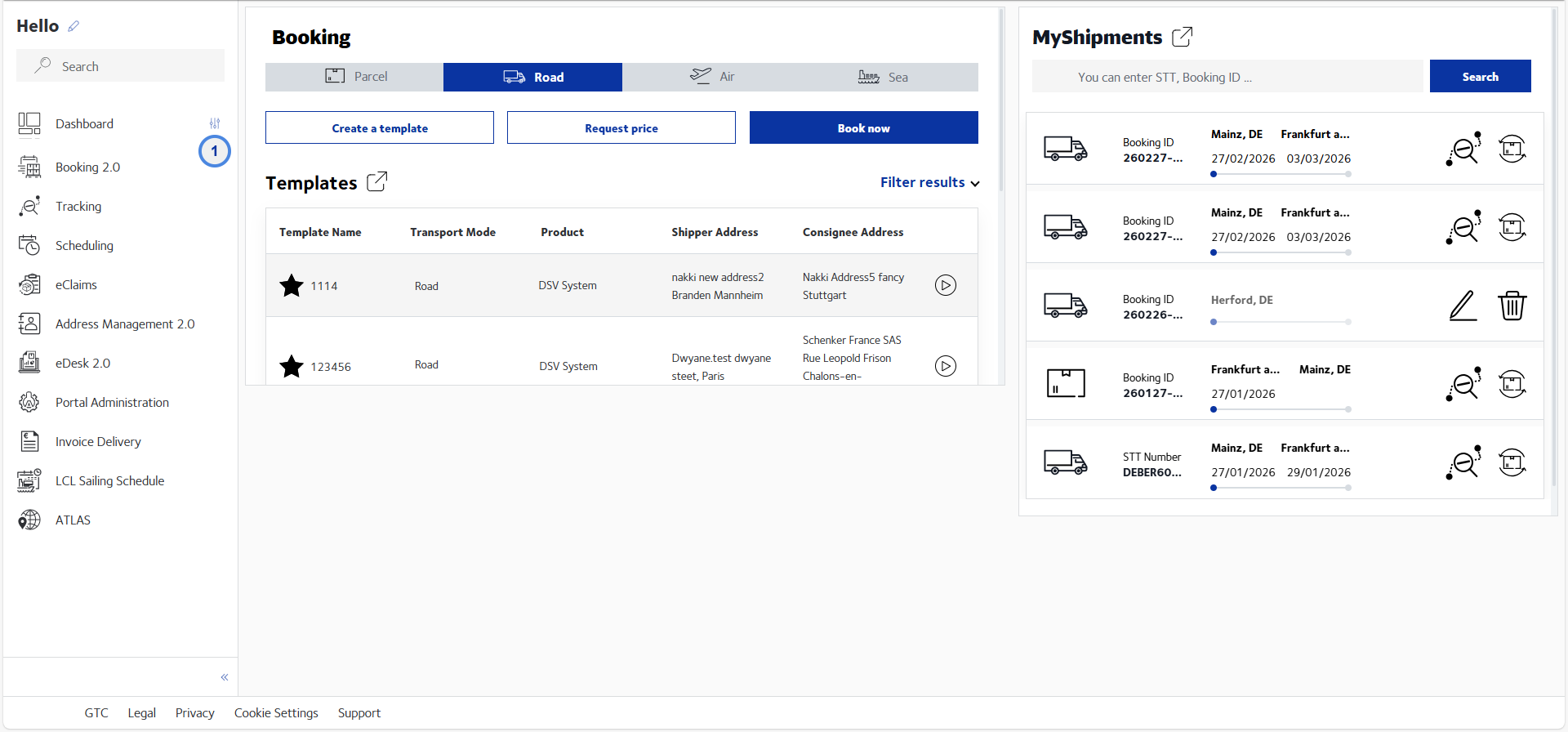
Depending on your configuration, some widgets may already be visible when you open the dashboard. Follow the instructions below to make additional widgets visible.
-
Click the Dashboard configuration icon
-
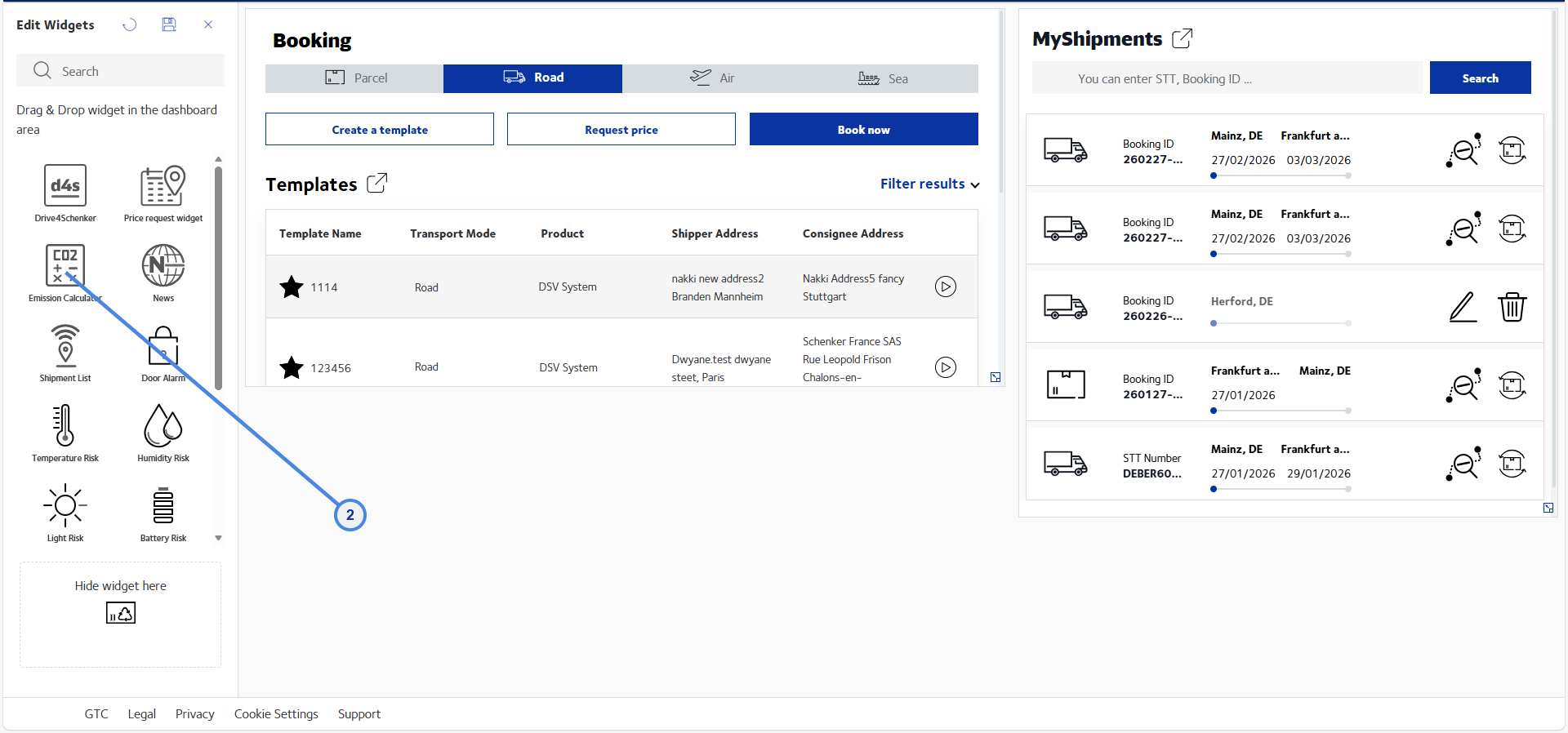
Drag the widget you want to add to the dashboard
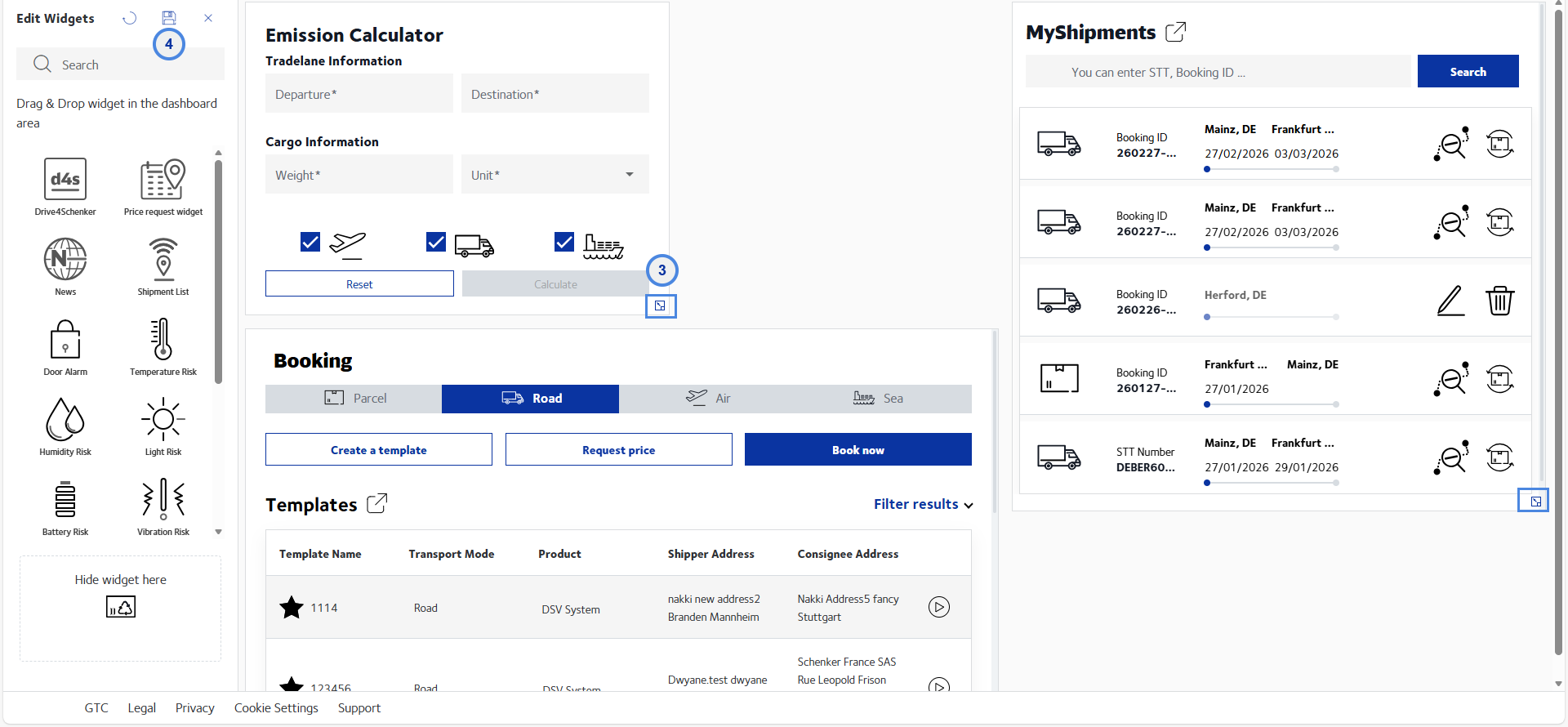
Drag-and-drop the widget to the desired location
-
Pull the widget to the desired size
-
Click the Save icon to save your settings
Removing widgets
0.0 Removing widgets
If you want to remove a widget from your dashboard, you can hide the widget from view.
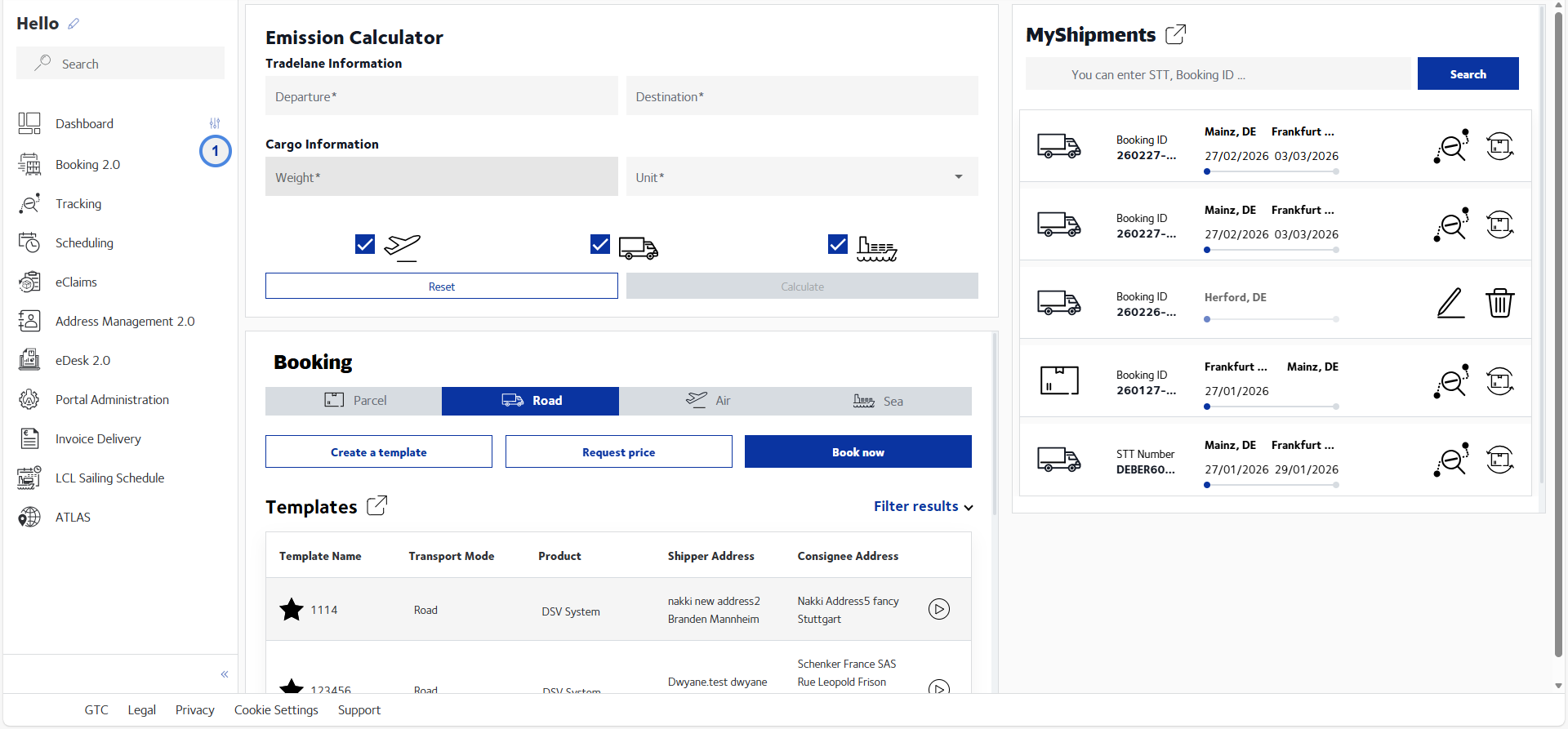
-
Click the Dashboard configuration icon
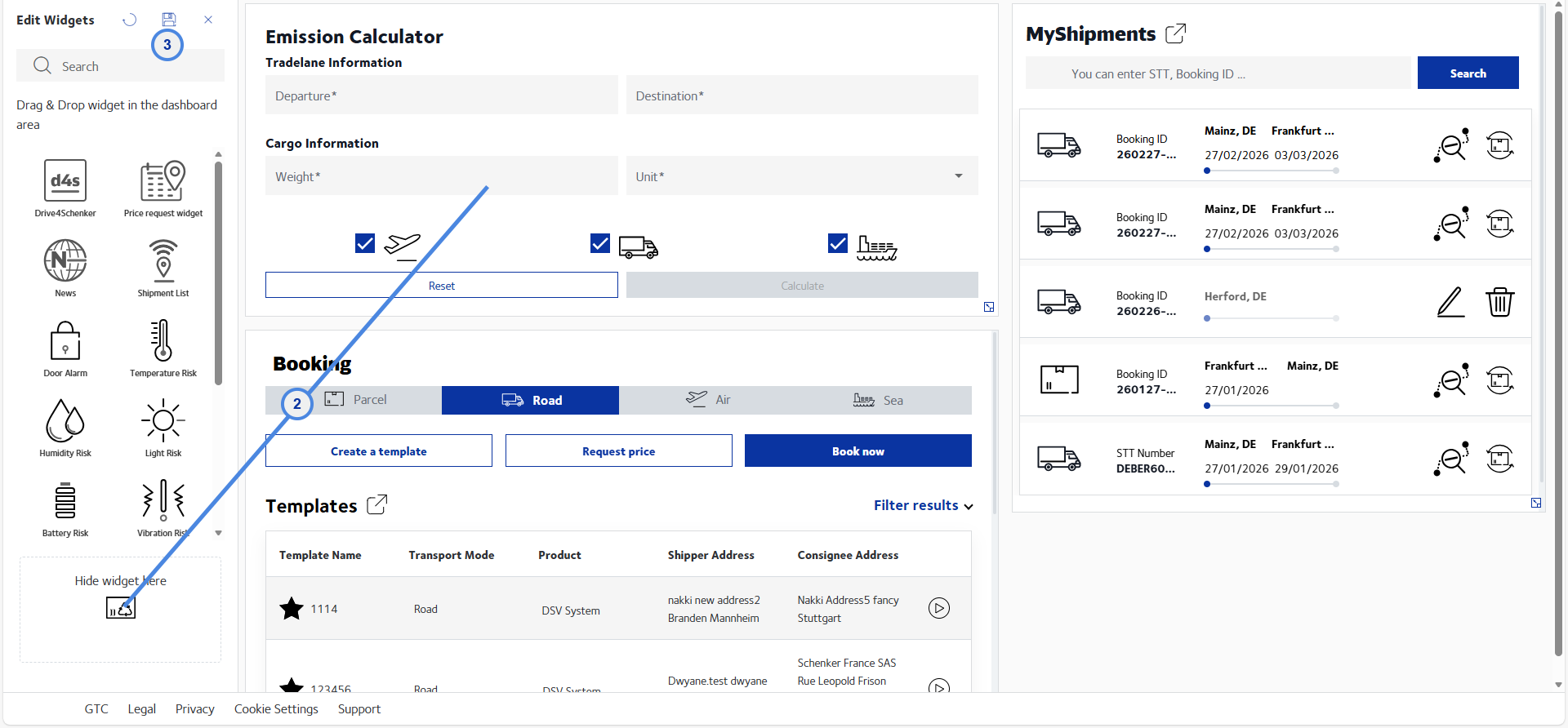
-
Drag the widget to the "Hide widget" icon
Note that the cursor must be above the icon when you drop it. Otherwise the widget will not be hidden. -
Click the Save icon to save your settings
Accessing your eServices and change favourites
0.0 Accessing your eServices and change favourites
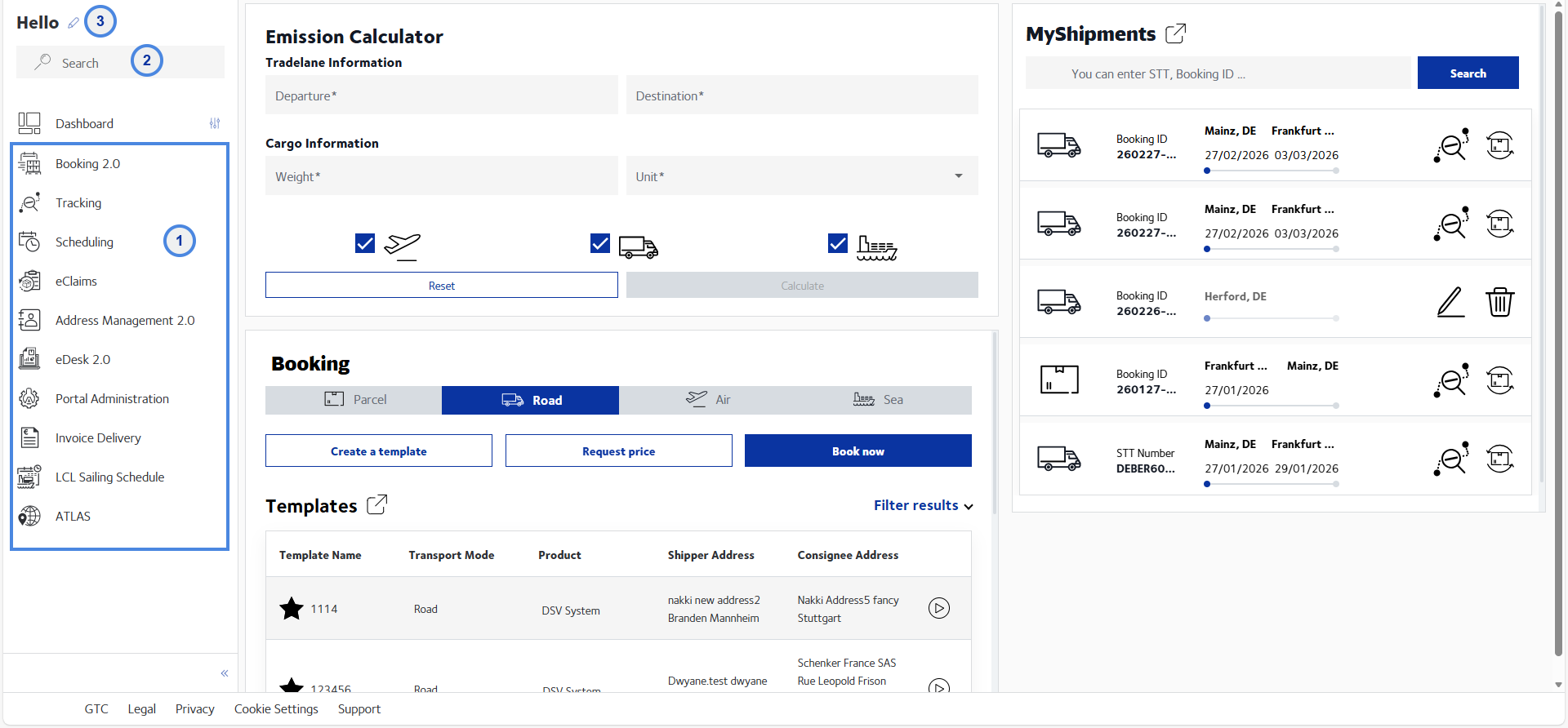
-
Access favourite services in the side panel
-
Access services that are not marked as favourites
If a service is not shown in the side panel, you can search for it via the search field and open it from the search results. -
Change favourites
If you want to change your favourites, click the pen icon.
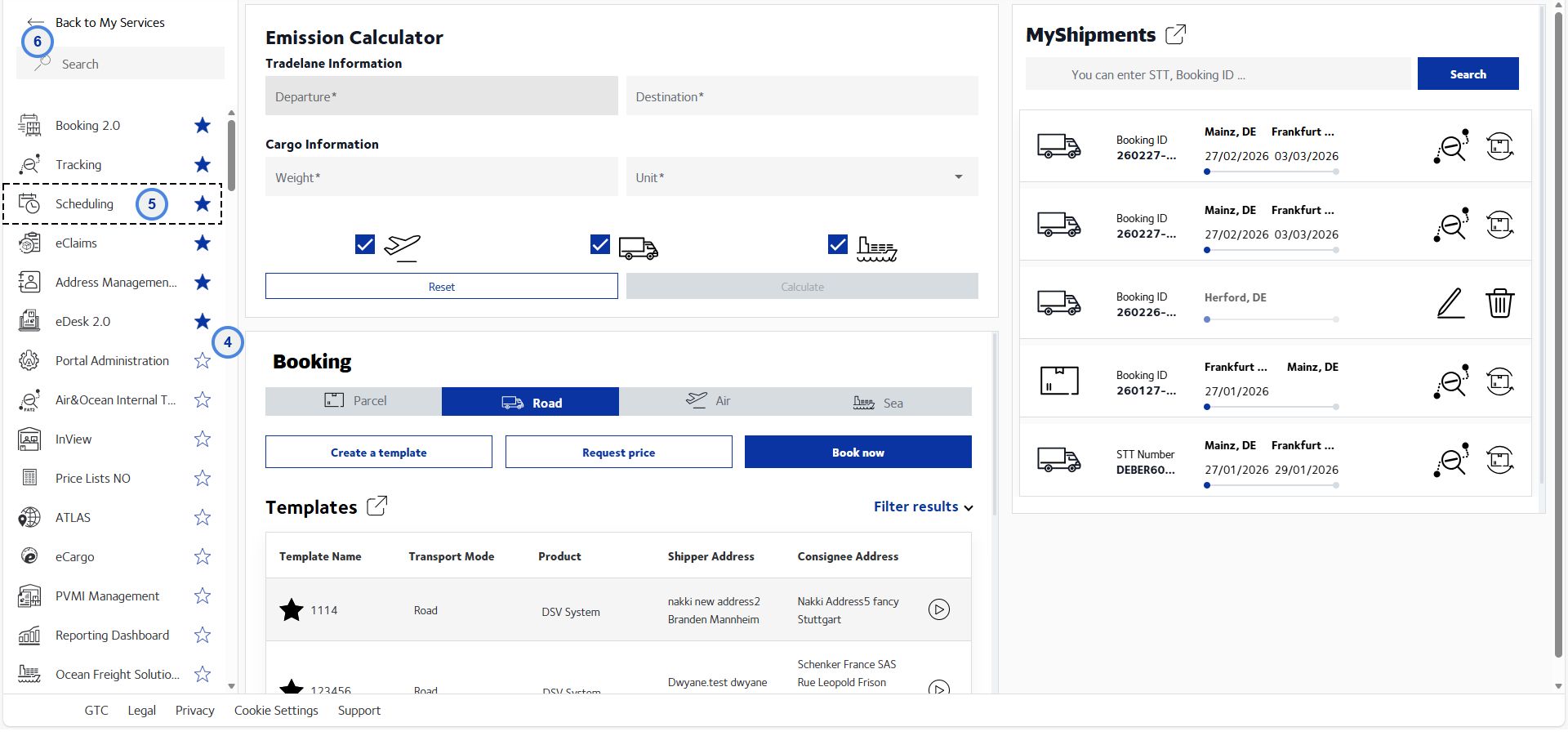
-
Select / deselect favourites
If you want to change your settings regarding favourite services you can do this in the all eServices list. Favourite services are marked with a . Other services are marked with a
  . To select a new favourite or to remove an eService from you favourites, click on the star to change the setting.
 -
Reorder favourites
Use drag-and-drop to reorder the selected favourites according to your needs.
-
Return to the dashboard
Click the back arrow icon to save your settings and return to the dashboard.
Changing your language and user preferences
0.0 Changing your language and user preferences
Watch the video for further instructions on how to set the user settings: